SafeImob Help Center

Topic guides: schedule, contract, individual/company signup, personas, new property listing, and Marketing (Creative Studio and Lead Ads).

Show or hide help index

Individual and company signup

Overview and access

To create a new account, use Sign up on the sign-in screen or open the signup routes directly: individual at /auth/cadastro/pf and company at /auth/cadastro/pj (your browser URL will also include the locale prefix, e.g. /en/auth/cadastro/pf).
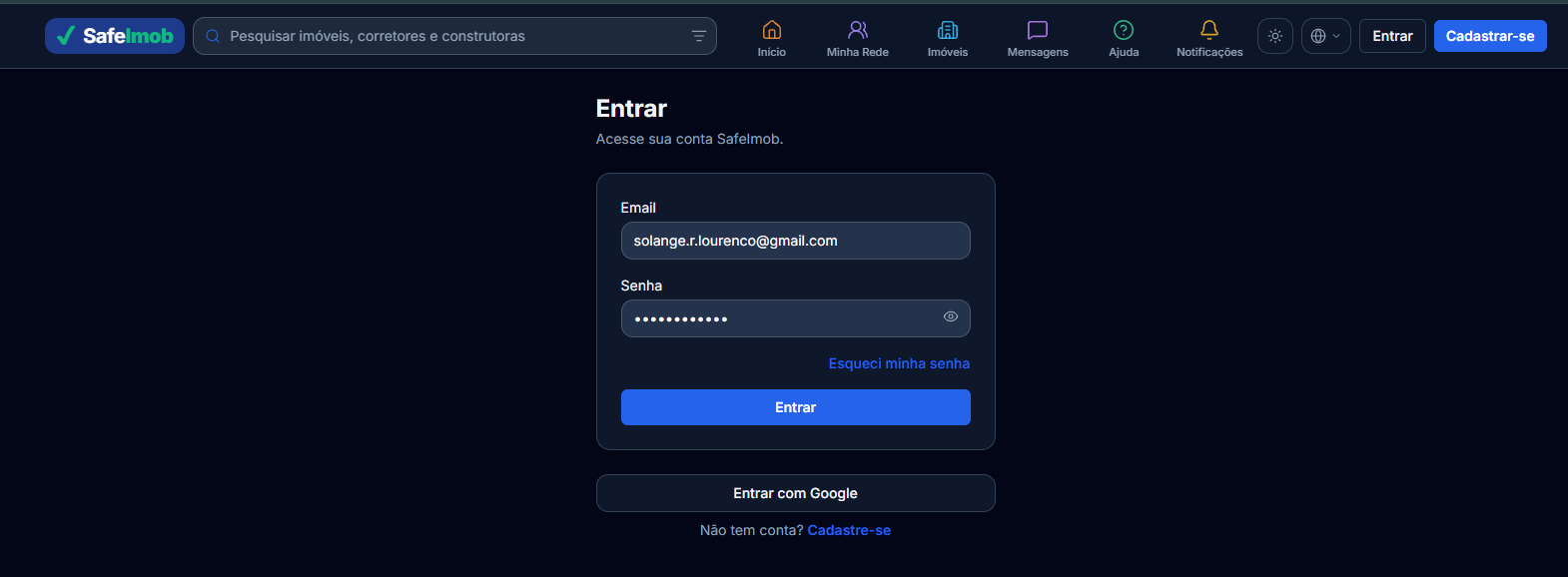
Screenshot of the sign-in screen with the Sign up link
On the sign-in screen, Sign up starts the flow with tabs for individual and company registration.

Individual vs company tabs

Signup is split into two tabs in the same area: Individual and Company. Each tab submits the correct account type.

  1. Pick the tab that matches the account type you need.
  2. You can switch tabs before submitting; individual and company fields are not mixed.
  3. Each tab shows persona options that apply to that type (for example broker on individual and agency on company).

Individual (PF)

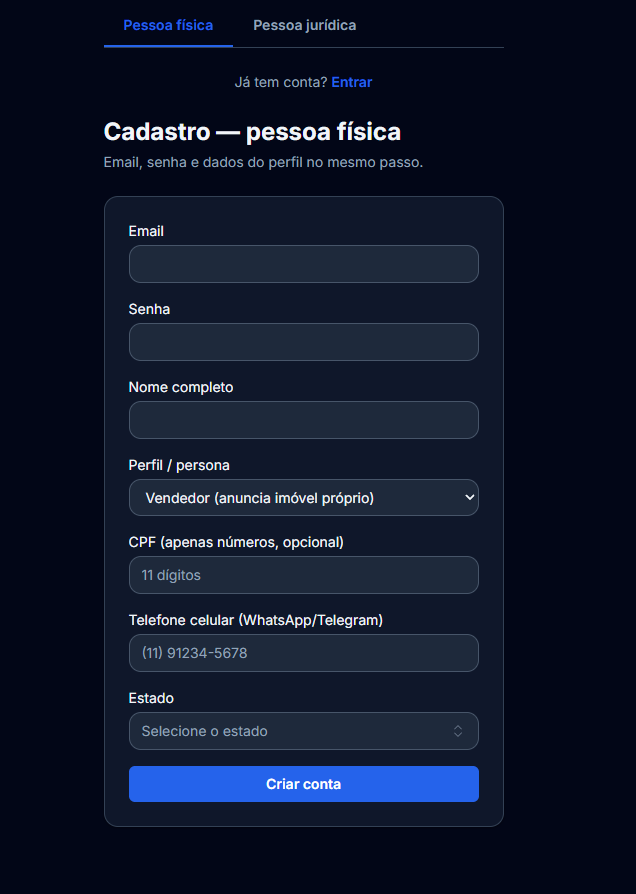
On the Individual tab, enter your personal account details.

  1. Enter email and password (minimum 8 characters).
  2. Enter full name and choose a persona from the list (such as Seller, Broker, Buyer, Visitor, or Lawyer).
  3. CPF is optional; if filled, it must be 11 valid digits or left empty.
  4. Phone with area code (10 or 11 digits) and two-letter state (UF).
  5. Submit the form. After signup, follow any email confirmation steps if the system requires them.
Screenshot of the individual (PF) signup form

Company (PJ)

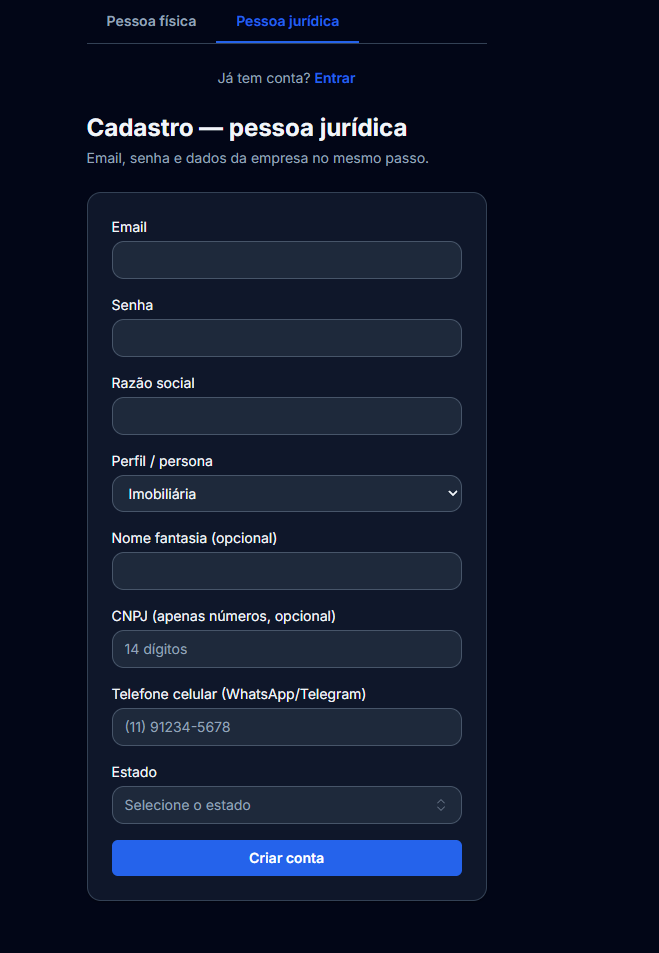
On the Company tab, register the business or organization.

  1. Enter email and password (minimum 8 characters).
  2. Enter legal name and choose a persona (such as Agency, Developer, Buyer, Visitor, or Condominium).
  3. Trade name is optional. CNPJ is optional; if provided, it must be 14 valid digits.
  4. Phone with area code (10 or 11 digits) and two-letter state (UF).
  5. Submit the form and check email confirmation instructions when applicable.
Screenshot of the company (PJ) signup form

Email confirmation

Sign-in may show a message that you must confirm your email before signing in — this matches EMAIL_NOT_VERIFIED. The account exists but the address is not verified yet.

  • Check the inbox for the registered email and also spam or promotions folders.
  • Use the confirmation link sent by the platform; when it completes, you may land on the in-app email verified page.
  • If you do not receive the email or remain blocked, use resend or support options in the UI when available.